Connector Shape Doesn’t Predict
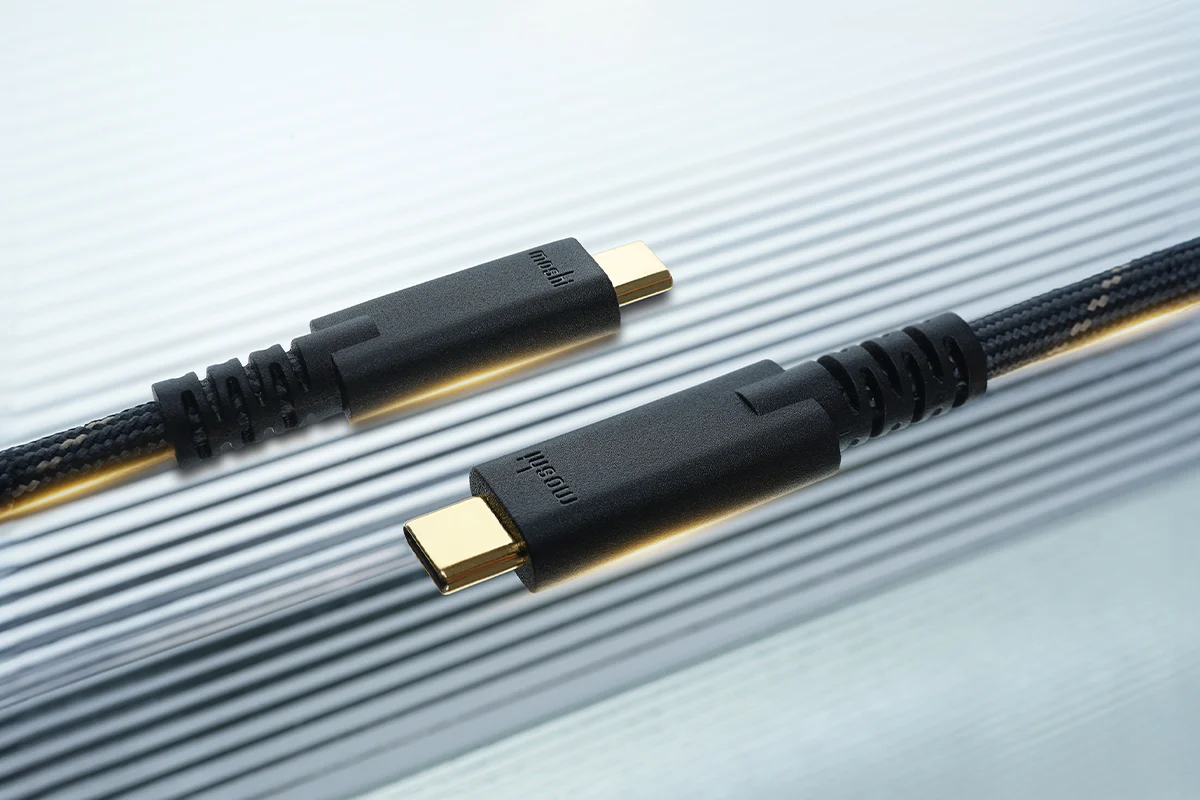
USB-C describes the plug and receptacle shape, not the electrical behavior of the cable. Two cables can both end in the same reversible connector while carrying different wire gauges, different maximum current ratings, and different data signaling capabilities. That mismatch is why a “looks the same” cable can charge slowly, fail to enumerate a phone, or drop out during file transfers.
USB-C also supports multiple protocols over the same physical port, including USB 2.0, USB 3.x, and DisplayPort Alt Mode. The cable must be wired and rated for the protocol the devices try to negotiate. When the negotiation fails, devices often fall back to slower modes, or they refuse to use the link at all.
Practical example: a laptop with a USB-C port that supports USB 3.x may still accept a USB-C cable that only supports USB 2.0. The plug shape matches, but the data pairs inside the cable do not. On my desk, a cable labeled “charging only” still fits perfectly, yet it never shows up as a storage device in Windows 11 (version 23H2) when connected for file transfer.
Common Misreads And Dependencies
People often assume that “USB-C” on the label means “fast charging and fast data.” That assumption breaks because cable construction varies: some cables include only power conductors, while others include the full set of high-speed differential pairs. Even when the pairs exist, the cable may not meet the signal integrity requirements for higher-speed USB modes.
Charging behavior depends on USB Power Delivery (USB PD) negotiation, not on the connector shape. USB PD uses specific communication over the cable’s CC pins to agree on voltage and current. If the cable lacks the correct PD wiring or is rated for lower power, the devices negotiate a lower profile or stop negotiating altogether.
Data behavior depends on which lanes are present and how they’re routed. USB 3.x uses high-speed differential signaling that is sensitive to cable length, shielding, and impedance control. A cable can look “thick” and still be wired for power only, and a cable can look “thin” while still meeting the requirements for a particular USB speed tier.
There’s also a safety layer: e-markers and cable ratings. Many higher-power USB-C charging cables include an electronic marker (e-marker) that helps the source and sink agree on safe current limits. Without that marker, devices may cap power conservatively, which feels like “the cable is bad” even when the device is doing what it was designed to do.
What To Do When Buying
Match Cable To Use Case
Start with the job: charging only, charging plus USB 2.0 data, USB 3.x data, or video output. For charging-only needs, a cable marketed for charging can be fine, but it should still be rated for the power level you expect. For file transfers, look for explicit support for USB 3.x data speeds rather than relying on the connector shape.
If you need video over USB-C, confirm support for DisplayPort Alt Mode in the cable listing and verify your device supports it. Some cables support the physical connection but not the high-speed wiring needed for video. In practice, a “works for charging” cable often fails to light a monitor because the video signaling requires the high-speed lanes.
Check USB PD Ratings
For fast charging, check the cable’s stated USB PD capability and maximum power. USB PD profiles commonly include 5V, 9V, 12V, 15V, 20V, and higher depending on device support. The cable must be rated for the current at the negotiated voltage; otherwise the source may limit output.
When packaging lists “100W” or “5A,” treat that as a claim about maximum power under USB PD conditions, not a guarantee for every device. Your phone or laptop may support only lower profiles, so the negotiated result can be lower even with a 100W-rated cable.
A small aside that helps: if a cable listing mentions an e-marker or “5A/100W with USB PD,” it usually signals that the cable is built for higher-power negotiation. If the listing is vague and says only “USB-C,” the safest expectation is conservative charging behavior.
Verify Data Speed Claims
For data, look for explicit USB 3.x support such as “USB 3.2 Gen 1” (often 5 Gbps) or “USB 3.2 Gen 2” (often 10 Gbps). Cable length also matters: higher-speed links degrade with longer runs, so a 2 m cable that works for charging may not sustain 10 Gbps transfers.
Use a simple outcome-based check: copy a large file to a USB-C storage device and observe whether transfer speed matches expectations for the device’s negotiated mode. If the system reports only USB 2.0 speed, the cable is likely missing or failing the high-speed requirements.
On macOS, you can check link speed in System Information for some devices; on Windows, Device Manager and USBView-style tools can show negotiated speeds. The exact steps vary by device, and some hubs mask details, which is why you may need to test with a direct connection.
Use Real-World Tests Safely
After purchase, test charging and data separately. For charging, watch whether the device shows a fast-charging indicator or reports negotiated power in its settings. For data, test with a known USB-C device that supports the speed you want, such as a USB-C SSD enclosure.
If a cable causes intermittent disconnects, try a shorter cable first. Loose strain relief and connector wear can create contact issues that mimic “bad cable” behavior. If the connector feels rough or the plug wobbles, the problem can be mechanical rather than electrical.
Do not run repeated high-power charging tests with a cable that smells overheated or shows visible damage. USB PD negotiation is designed to reduce risk, but physical defects still matter.
Educational Case Examples
Case 1: Phone Charges Slowly
An anonymized user buys a USB-C cable from a drawer assortment. The phone charges, but it takes much longer than with the original cable. The cable listing only mentions “USB-C charging,” with no USB PD profile or maximum power rating. The phone negotiates a lower default profile because the cable lacks the information needed for higher-power profiles.
The fix is not “buy a thicker cable” but “buy a cable with a stated USB PD capability that matches the charger and device.” After switching to a cable rated for the charger’s maximum output, the phone’s fast-charging indicator appears and charging time returns closer to the expected range.
Case 2: Laptop Refuses Data Transfer
An anonymized user connects a USB-C phone to a laptop for file transfer. The phone charges, yet the laptop shows no device for storage or file browsing. The cable is a “charging-only” cable that physically fits but omits the high-speed data pairs. The laptop never sees a proper USB data link, so it cannot enumerate the phone.
The fix is to use a cable explicitly marketed for USB data, ideally with a stated USB 3.x capability if the user expects higher-speed transfers. After switching cables, the laptop detects the phone and the transfer proceeds at the negotiated speed.
Quick Checklist For Cable Choice
| What You Need | What To Look For | What To Expect | Common Failure Mode |
|---|---|---|---|
| Charging only | Cable rated for the charger’s power; avoid vague listings | Charging works; speed may be capped | Slow charging due to conservative negotiation |
| Charging + USB data | Explicit “USB data” support; ideally USB 3.x if you need speed | Device enumerates; transfers at negotiated speed | Laptop/phone charges but no data link forms |
| Fast charging (USB PD) | Stated USB PD capability (often 100W/5A) and matching charger | Higher voltage/current profiles negotiate | Negotiation falls back to lower power |
| Video over USB-C | DisplayPort Alt Mode support; device compatibility | Monitor receives video via USB-C | Monitor stays blank; cable lacks high-speed wiring |
Step-by-step checklist you can use before buying or troubleshooting:
- Write down the device’s port capabilities (USB 3.x, USB PD power, DisplayPort Alt Mode) from its manual or spec page.
- Match the charger output to the cable rating; a 65W charger with a cable rated for much less often triggers fallback.
- For data, confirm the cable supports the speed tier you expect, not just “USB-C.”
- For video, confirm Alt Mode support and test with a known-good monitor or adapter.
- After connecting, check whether the device reports fast charging or the negotiated USB speed.
Common Mistakes That Mislead
Buying based on connector shape alone leads to predictable disappointment: charging works, but data fails, or data works, but charging stays slow. Another frequent mistake is assuming that “USB 2.0” and “USB 3.x” are interchangeable because both use the same connector. USB 3.x requires additional high-speed wiring and stricter signal integrity.
People also over-trust cable thickness. Wire gauge affects current handling, but it does not guarantee that the cable includes the correct data pairs or meets high-speed requirements. A thick cable can still be a power-only cable, and a thin cable can still support USB 3.x if it’s built for it.
Testing only one scenario hides the real problem. If you test charging and stop, you might miss that the cable lacks data pairs. If you test data with a phone and stop, you might miss that the cable caps power and slows charging.
Finally, avoid “mystery cable” assumptions when a device behaves conservatively. Some devices cap power when they cannot confirm safe current limits, and that behavior can look like a cable defect even when the device is protecting itself.
FAQ
Does A USB-C Plug Guarantee Fast Charging?
No. Fast charging depends on USB Power Delivery negotiation and the cable’s ability to support the negotiated voltage and current profiles.
Why Does My Cable Charge But Not Transfer Files?
The cable may omit the high-speed data pairs or may be wired only for charging. The device can draw power while the USB data link never enumerates.
What Cable Rating Matters For USB PD?
Look for stated USB PD capability and maximum power (often expressed as 100W/5A) and confirm it matches the charger and device expectations.
Can A Shorter Cable Fix USB 3.x Dropouts?
Sometimes. High-speed USB links are sensitive to length and signal integrity, so a shorter cable can improve stability if the original cable barely meets requirements.
Do E-Markers Affect Charging Performance?
E-markers help devices confirm safe current limits for higher-power charging. Without them, devices may cap power to conservative levels.
Author's Insight
USB-C is a connector standard, not a performance guarantee. Cable behavior comes from internal wiring choices, USB PD negotiation support, and whether the cable meets the electrical requirements for the negotiated USB mode. When troubleshooting, separate charging from data and verify what the devices report about negotiated power or link speed. Packaging claims vary in clarity, so outcome-based checks with a known device often reveal what the cable actually supports.
Key Takeaways
- USB-C connector shape does not predict charging speed or data capability.
- Fast charging depends on USB PD negotiation and cable ratings, not appearance.
- Data performance depends on whether the cable includes and supports the required high-speed signaling.
- Video over USB-C requires DisplayPort Alt Mode support and compatible high-speed wiring.
- Test charging and data separately, and verify negotiated power or link speed when possible.